Riverty Payment: Configuration
Configuring Riverty for OXID eShop 7 - API keys per country, fetching payment methods, payment settings, risk data and order management.
Riverty Payment: Configuration
Live Demo: Try this and other plugins live — no installation, no risk: demo.markus-michalski.net
Admin path: Extensions > Modules > Riverty > Settings. You do everything described here yourself in the admin. You only need a developer for installation, the optional Integration API connection and the cron setup (see Installation and Integration API).
API settings per country
Each country (DE, AT, CH, NL, BE, NO, SE, DK, FI) has its own collapsible section (under "Country Settings") with three settings:
| Setting | Type | Default | Meaning |
|---|---|---|---|
Test API Key (mmdRivertyApiKeyTest{CC}) |
Password | empty | Sandbox API key for this country |
Live API Key (mmdRivertyApiKeyLive{CC}) |
Password | empty | Live API key for this country |
Sandbox mode for this country (mmdRivertySandbox{CC}) |
Bool | on | On = test key is used, off = live key is used |
{CC} stands for the country code, e.g. DE. You receive the API keys from Riverty as part of your merchant contract.
A country is only active if the key matching its sandbox switch is filled in. Sandbox countries talk to the Riverty test environment, all others to the live environment.
The order matters when switching to live: enter the live key first, THEN turn the sandbox switch off. The other way round the country silently stays inactive, because the key matching the switch is still empty.
The Test API Keys button checks connectivity for every country with an active key and shows per country whether the key is valid.
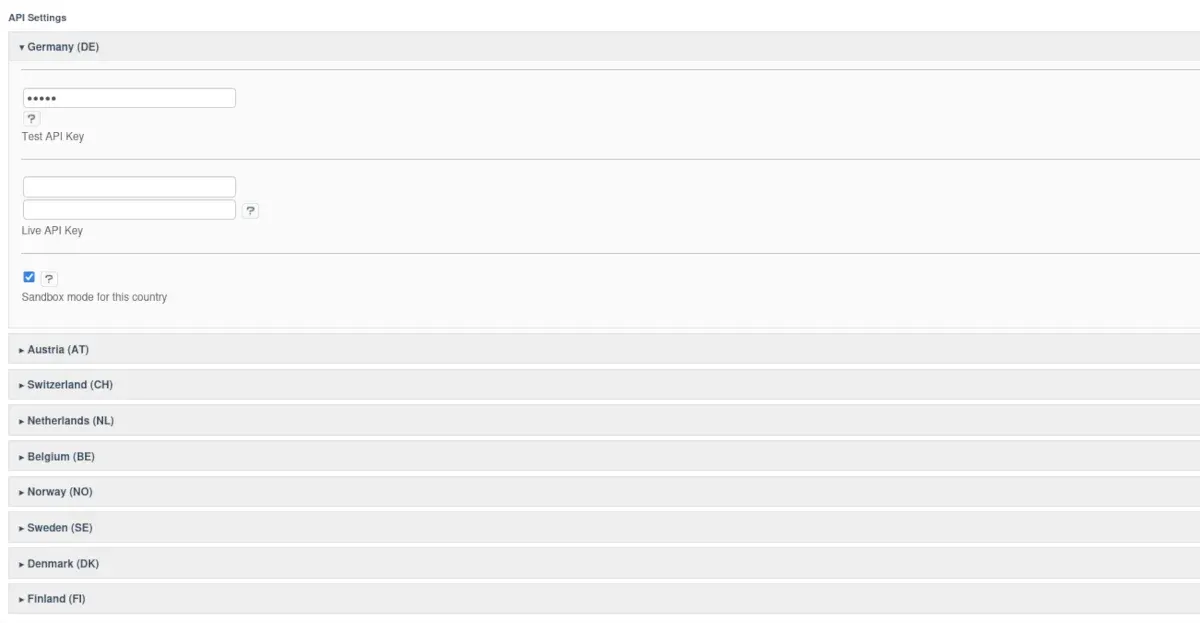
Figure: API settings per country

Figure: Testing API keys per country
Fetching payment methods (mandatory step)
After saving an API key the Riverty payment methods do NOT appear at checkout automatically. Only a click on Fetch & Sync Payment Methods creates the payment methods and assigns them to the countries. This applies to the initial setup as well as after every change of the country keys (e.g. a new country or switching from sandbox to live).
The button does two things:
- For every country with an active key it asks Riverty for the available payment methods (test amount 200 EUR) and shows the result per country.
- It synchronizes the OXID payment methods based on the configured countries, not based on that query.
The synchronization works like this:
| Payment method (OXID ID) | Name in the shop | Countries |
|---|---|---|
mmd_riverty_invoice |
Riverty Invoice | all countries with an active key |
mmd_riverty_directdebit |
Riverty Direct Debit | all countries with an active key |
mmd_riverty_installment |
Riverty Installments | all countries with an active key |
mmd_riverty_payinx |
Riverty Pay in X | NL only, if NL is active |
"Riverty Pay in X" is the name of the payment method in the shop. It is the Riverty product "Pay in 3", hence the term used in this documentation. You can change the name in OXID's payment method master data.
- Missing payment methods are created (active, sort 100, order value from 0 to 10000) and assigned to the countries.
- Existing payment methods are reactivated and missing country assignments are added. Countries that are no longer configured are removed.
- Payment methods with no remaining country are deactivated.
- Below the button you see the results as the "Payment Method Sync" table and the list "Configured Riverty Payment Methods" with status and countries.

Figure: Syncing payment methods

Figure: Currently configured Riverty payment methods
Payment settings
| Setting | Type | Default | Meaning |
|---|---|---|---|
Mark order as paid on capture (mmdRivertyMarkPaidOnCapture) |
Bool | on | Sets the order's paid date on a successful capture |
Move order to folder after capture (mmdRivertyFolderAfterCapture) |
Select | Do not move | Options: Do not move, New, Finished, Problems |
Move order to folder after full void (mmdRivertyFolderAfterVoid) |
Select | Do not move | Same options |
Show instalment price preview in checkout (mmdRivertyShowInstallmentTeaser) |
Bool | off | "from X €/month" hint with a representative example per § 6a PAngV, see Storefront |
When "mark as paid" and the folder move after capture apply:
- after Capture All + Ship in the order's Riverty tab,
- after a void in the Riverty tab that completes the remaining authorization of an order that was already partially captured,
- after every successful capture via the Integration API.
The Capture Selected action in the Riverty tab sets neither the paid date nor the folder.
The folder move after full void applies when the entire authorization was voided and nothing was captured.
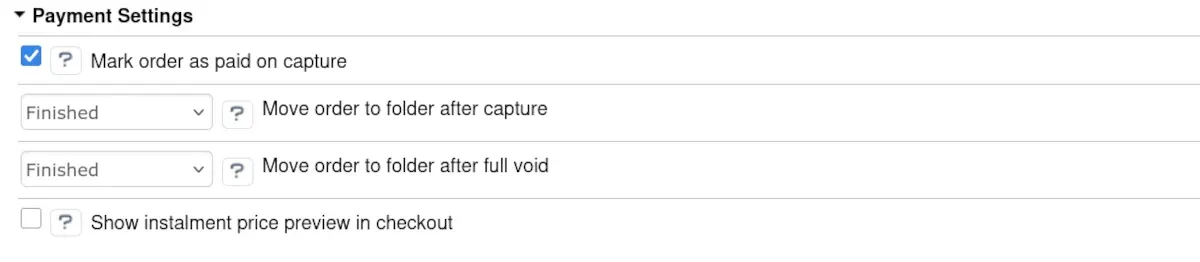
Figure: Payment settings
Risk data
| Setting | Type | Default | Meaning |
|---|---|---|---|
Send existing-customer data to Riverty (mmdRivertyExistingCustomerData) |
Select | Disabled | Controls which existing-customer data Riverty receives for the risk check |
Options:
- Disabled: only the IP address (always sent).
- Flag only (existingCustomer): additionally an "is existing customer" flag.
- Full (incl. order history): additionally the date of the first successful order, the number of orders and the total amount of the last 12 months.
Details on the transmitted data are on the Privacy page.
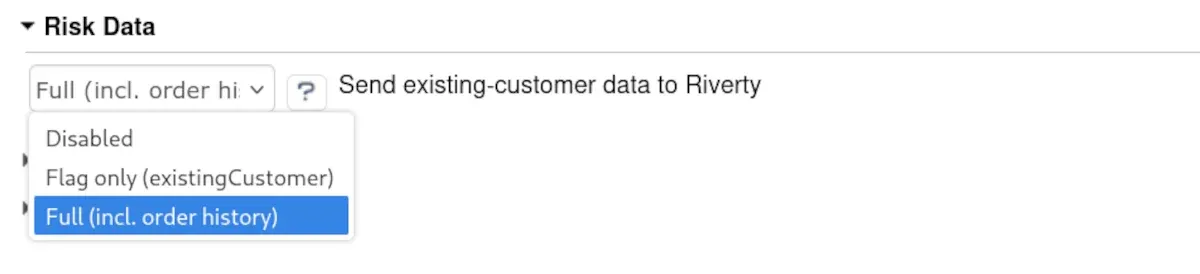
Figure: Risk data
Debug
| Setting | Type | Default |
|---|---|---|
Enable Debug Logging (mmdRivertyDebugLog) |
Bool | off |
When enabled, writes to riverty.log in the shop's log directory. Personal data fields are masked. The API log in the admin (see below) always runs independently of this.

Figure: Debug mode
Cleanup
| Setting | Type | Default | Meaning |
|---|---|---|---|
Retain API logs for (days) (mmdRivertyApiLogRetentionDays) |
Number | 90 | Deletes API log rows and stored idempotency keys older than N days |
Retain abandoned payment attempts for (days, 1-30) (mmdRivertyPendingTransactionRetentionDays) |
Number | 7 | Deletes abandoned payment attempts without a linked order N days after they were marked as expired |
These values only take effect when the oe:riverty:cleanup cron command runs (see Integration API and Console Commands).
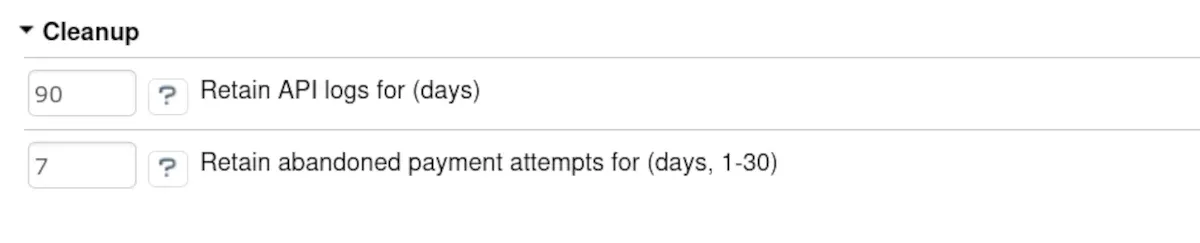
Figure: Retention periods for logs and transactions
Integration API (optional)
Only relevant if an external system (ERP/WMS) should capture, void or refund orders automatically.
| Setting | Type | Default | Meaning |
|---|---|---|---|
Enable external integration API (mmdRivertyIntegrationApiEnabled) |
Bool | off | Enables the external API endpoint |
Shared secret (mmdRivertyIntegrationApiSecret) |
Password | empty | Set via the "Generate new secret" button, not manually |
After generation the secret is shown only in the current browser session. If you lose it, generate a new one and update the integration. The admin also displays your shop's endpoint URL.
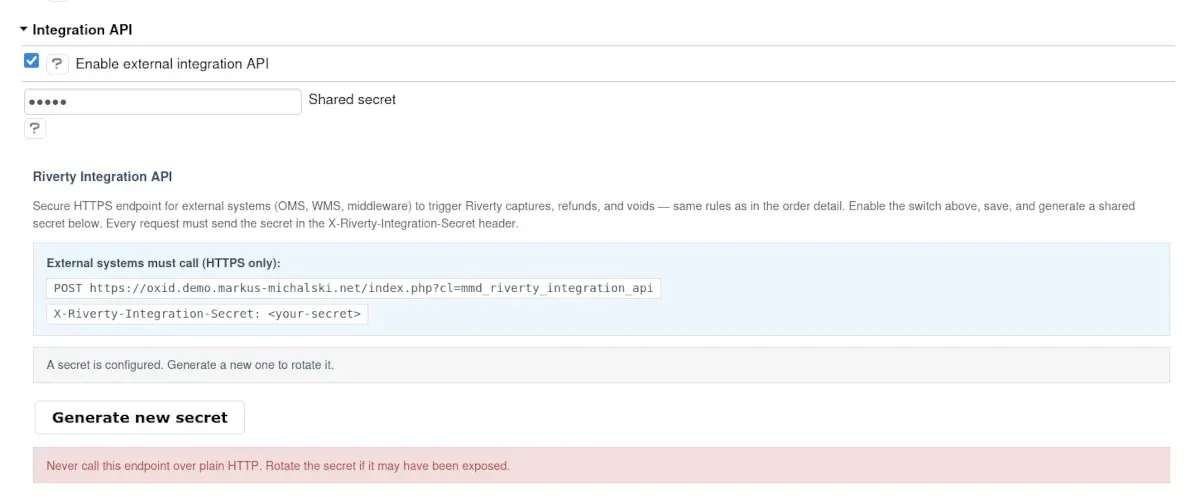
Figure: Enabling the external Integration API and generating the secret
Order management in the admin
The order detail view has a Riverty tab (Administer Orders > Orders > select order > Riverty). It shows status, reservation ID, amounts (authorized, captured, voided, refunded, open) and the available actions:
| Section | Button | Effect |
|---|---|---|
| Capture | Capture All + Ship | Captures the remaining authorized amount, then sets the ship date. On an API error the order stays unshipped. The button only appears while the order is not yet shipped |
| Capture | Capture Selected | Captures the selected items and quantities |
| Void (Cancel) | Void All (Full Void) | Voids the remaining authorized amount |
| Void (Cancel) | Void Selected | Voids the selected items |
| Refund | Refund All (Full Refund) | Refunds all captured, not yet refunded items |
| Refund | Refund Selected | Refunds the selected items |
Which sections appear depends on the transaction status:
| Status (as displayed) | Capture/void possible | Refund possible |
|---|---|---|
| Authorized | yes | no |
| Partially Captured | yes | yes |
| Captured | no | yes |
| Partially Refunded | no | yes |
| Voided, Refunded, Rejected, Expired | no | no |
Every action asks for confirmation first. Refunds are sent to Riverty per capture number.
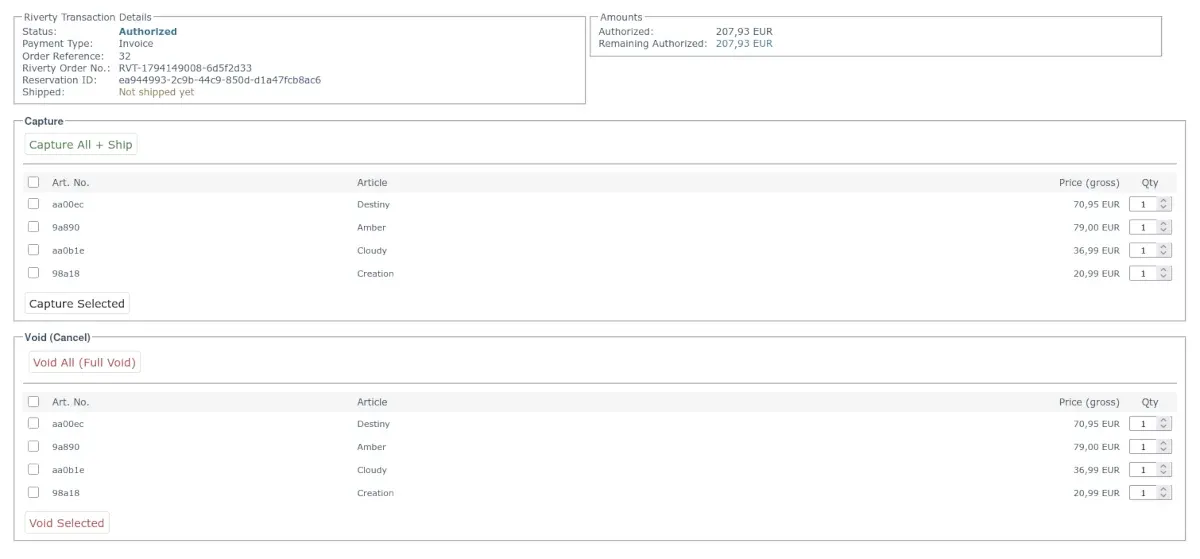
Figure: Riverty tab in the order view
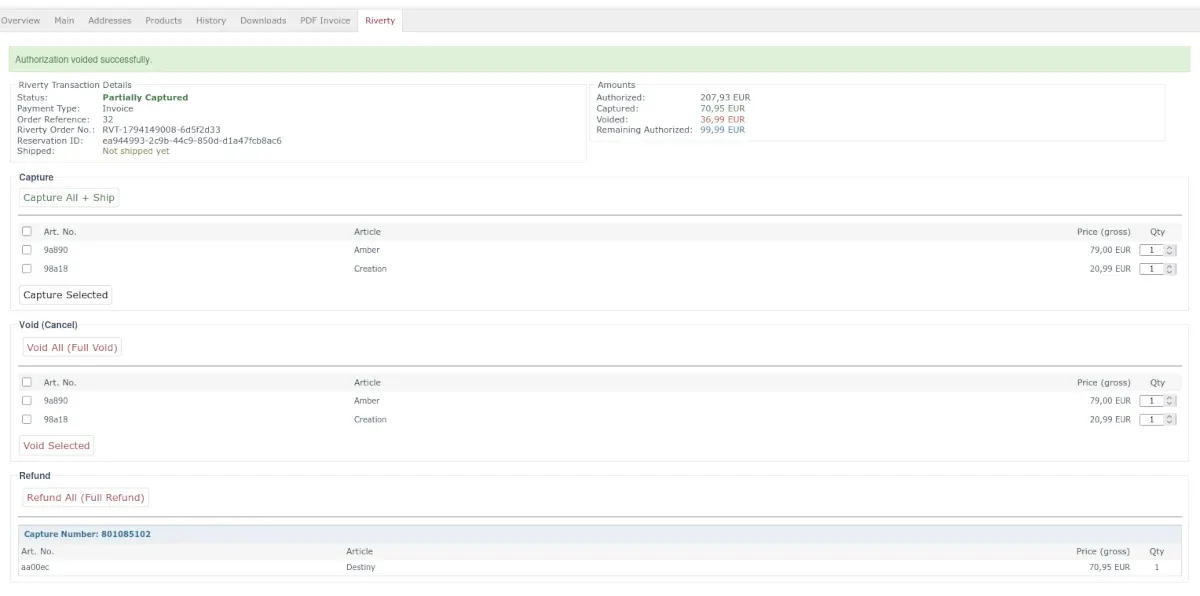
Figure: Capture/void example with partial quantities
API logs
Under Riverty > API Logs in the admin menu every Riverty API call is logged, regardless of debug mode. The list can be filtered by time range, type, order reference, HTTP status and country. Queries of type payment-methods (fired on every visit of the payment selection) are hidden by default. Untick "Hide payment-methods calls" to show them. This is the first place to look when a payment does not behave as expected.
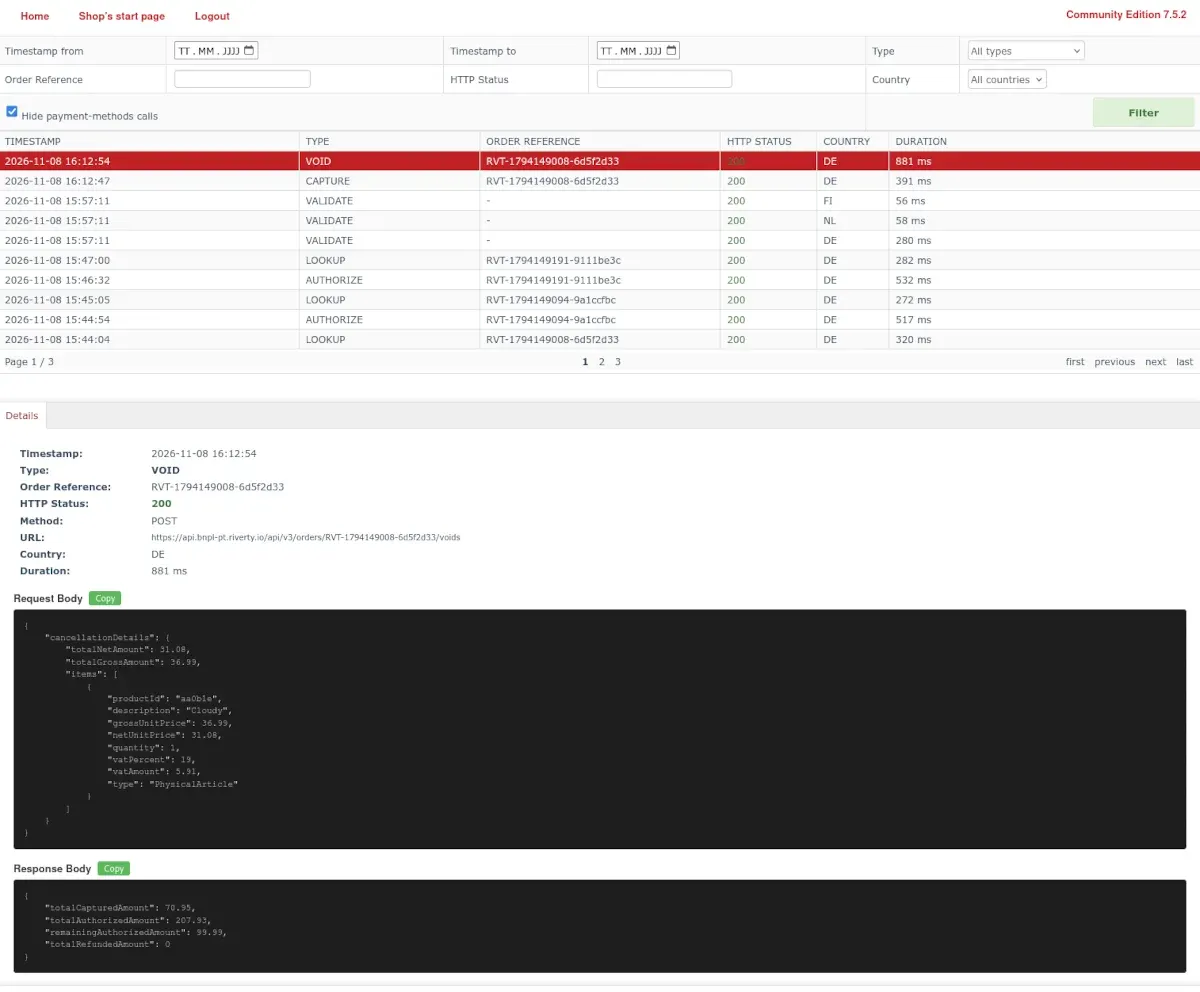
Figure: API log interface in the admin