¶ Riverty Payment: Configuration
Path in admin: Extensions > Modules > Riverty > Settings. Everything described here you do yourself in the admin — your developer is only needed for installation, optional Integration API setup, and cron setup (see Installation and Integration API).
¶ API Settings per Country
For each country (DE, AT, CH, NL, BE, NO, SE, DK, FI), three settings:
| Setting | Type | Default | Meaning |
|---|---|---|---|
Test API Key (mmdRivertyApiKeyTest{CC}) |
Password | empty | Sandbox API key for this country |
Live API Key (mmdRivertyApiKeyLive{CC}) |
Password | empty | Live API key for this country |
Sandbox mode for this country (mmdRivertySandbox{CC}) |
Bool | true | true = test key active, false = live key active |
You get the API keys from Riverty as part of your merchant contract.
Order matters when switching to live: enter the live key FIRST, THEN switch the sandbox toggle to false. Doing it the other way around leaves the country inactive, because the key matching the toggle is still empty.
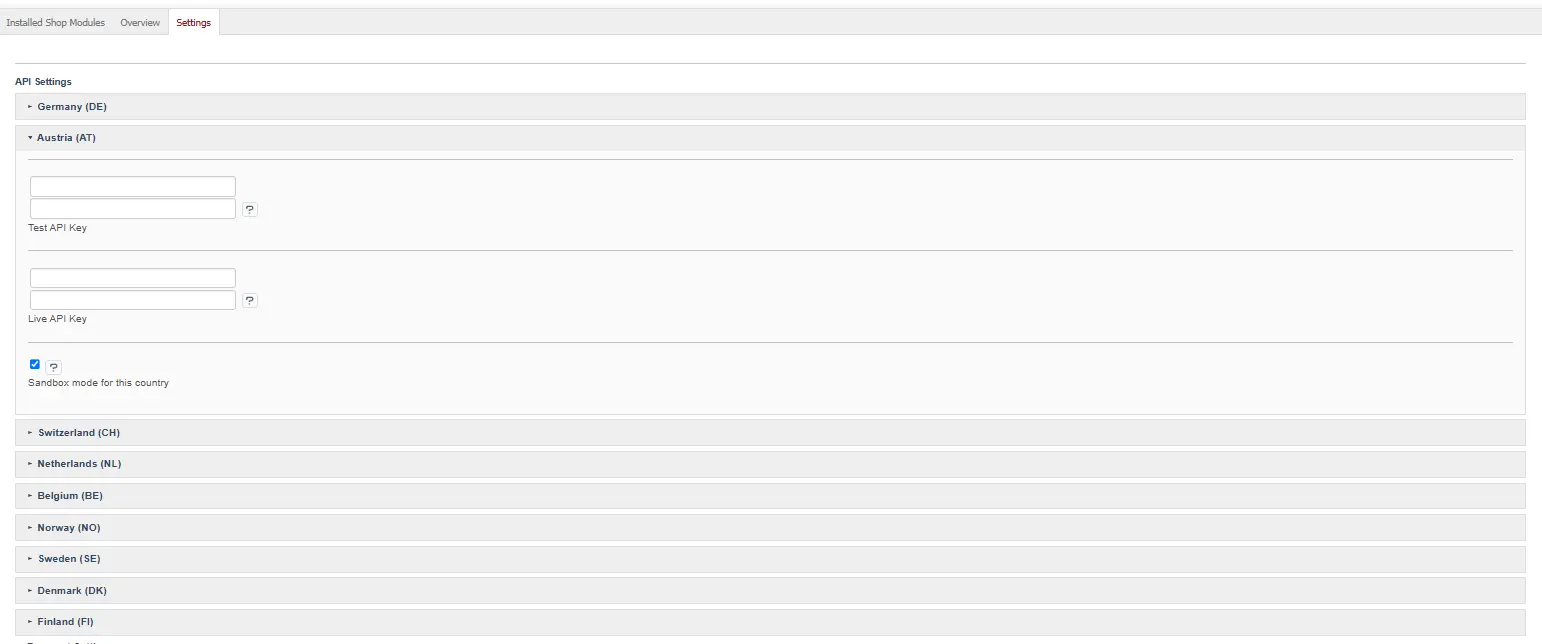
Figure: API settings per country

Figure: Testing API keys per country
¶ Retrieving Payment Methods (mandatory step after any key change)
Saving an API key does NOT automatically make Riverty payment methods appear at checkout. Only after clicking "Fetch Payment Methods" are the payment methods enabled for your country retrieved and set up. This applies both to initial setup and to any later key change (e.g. switching from sandbox to live).

Figure: Syncing payment methods with your Riverty contract ("Fetch Payment Methods")

Figure: Currently configured Riverty payment methods
¶ Payment Settings
| Setting | Type | Default | Meaning |
|---|---|---|---|
Mark order as paid on capture (mmdRivertyMarkPaidOnCapture) |
Bool | true | Automatically marks the order as "paid" after a successful capture |
Move order to folder after capture (mmdRivertyFolderAfterCapture) |
Select | empty | Moves the order to a different folder after capture (e.g. "Finished") |
Move order to folder after full void (mmdRivertyFolderAfterVoid) |
Select | empty | Moves the order to a different folder after a full void |
Show instalment price preview at checkout (mmdRivertyShowInstallmentTeaser) |
Bool | false | "from X€/month" teaser with PAngV §6a representative example at checkout |

Figure: Payment settings
¶ Risk Data Enrichment
| Setting | Type | Default | Meaning |
|---|---|---|---|
Send existing-customer data to Riverty (mmdRivertyExistingCustomerData) |
Select | Disabled | Controls which existing-customer data Riverty receives for risk assessment |
Options: Disabled (IP address only) · Flag only (adds an "is existing customer" flag) · Full, incl. order history (adds customer-since date plus number and amount of transactions in the last 12 months).

Figure: Risk data enrichment
¶ Debug Mode
| Setting | Type | Default |
|---|---|---|
Enable debug logging (mmdRivertyDebugLog) |
Bool | false |
Writes to source/log/riverty.log when enabled. The API log in the admin (see below) runs independently of this and is always on.

Figure: Debug mode
¶ Automatic Data Cleanup
| Setting | Type | Default | Meaning |
|---|---|---|---|
Retain API logs for (days) (mmdRivertyApiLogRetentionDays) |
Number | 90 | Deletes API log rows older than N days |
Retain abandoned payment attempts for (days, 1-30) (mmdRivertyPendingTransactionRetentionDays) |
Number | 7 | Must be between 1 and 30 |
These values control how long data is retained — the cron job that carries this out is set up by your developer (see Integration API and Console Commands).

Figure: Retention periods for logs and transactions
¶ Enabling the Integration API (optional)
Only relevant if an external system (ERP/WMS) should be able to trigger capture/void automatically — your developer handles the technical integration for this.
| Setting | Type | Default | Meaning |
|---|---|---|---|
Enable external integration API (mmdRivertyIntegrationApiEnabled) |
Bool | false | Enables the external API endpoint |
Shared Secret (mmdRivertyIntegrationApiSecret) |
Password | empty | Generated via button — shown only once |
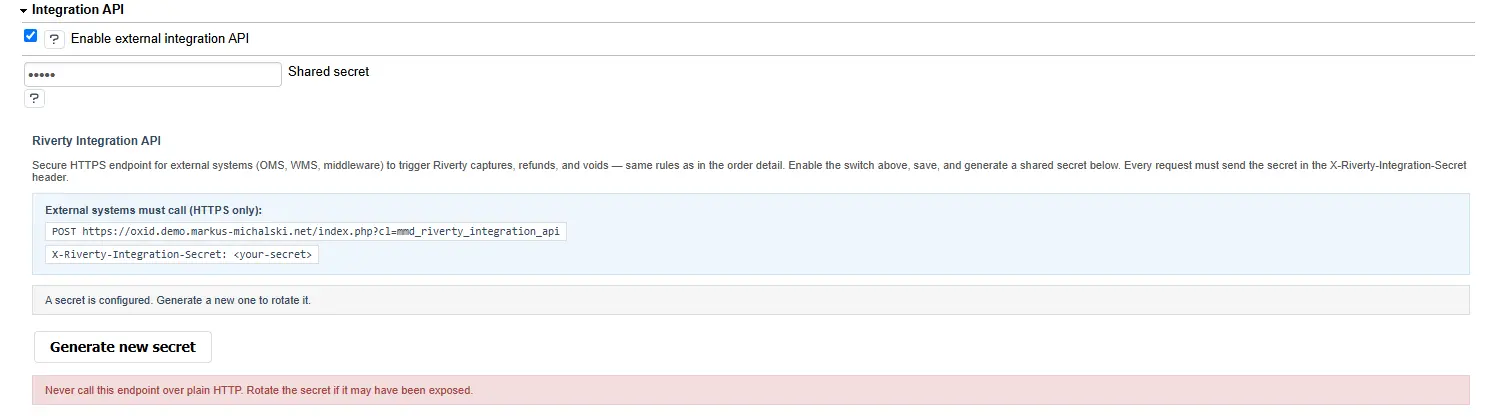
Figure: Enabling the external Integration API and generating a secret
¶ Storefront View per Payment Method
This is how each payment method appears at checkout in your shop.
When the payment method selection is loaded, the module asks Riverty which payment methods are available for the current basket amount. If the basket is below the minimum amount for instalments, for example, that method simply won't be shown to the customer — this is not a configuration error. No customer data is sent in this request, only the basket amount.
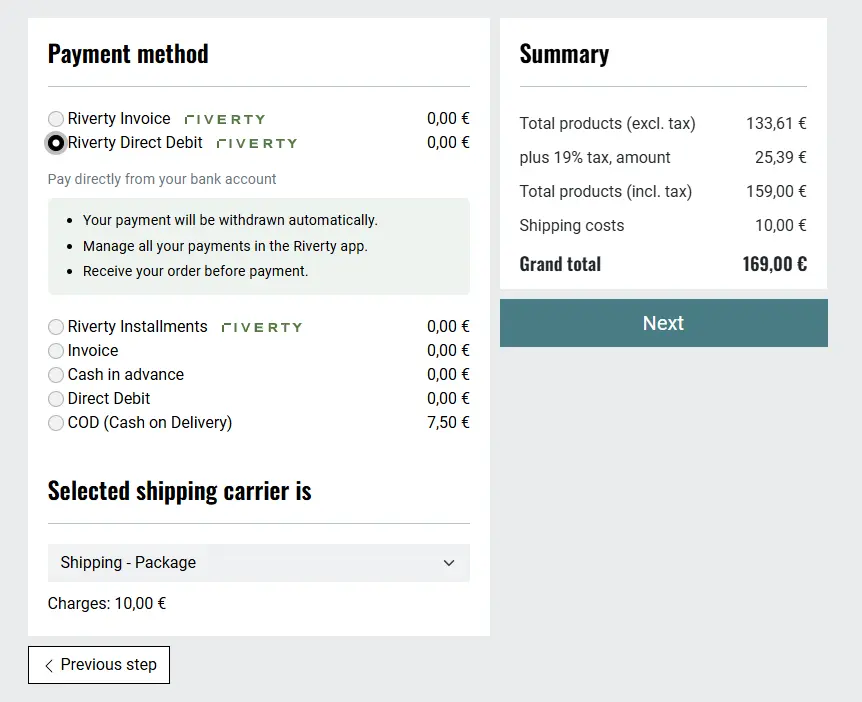
Figure: Direct debit
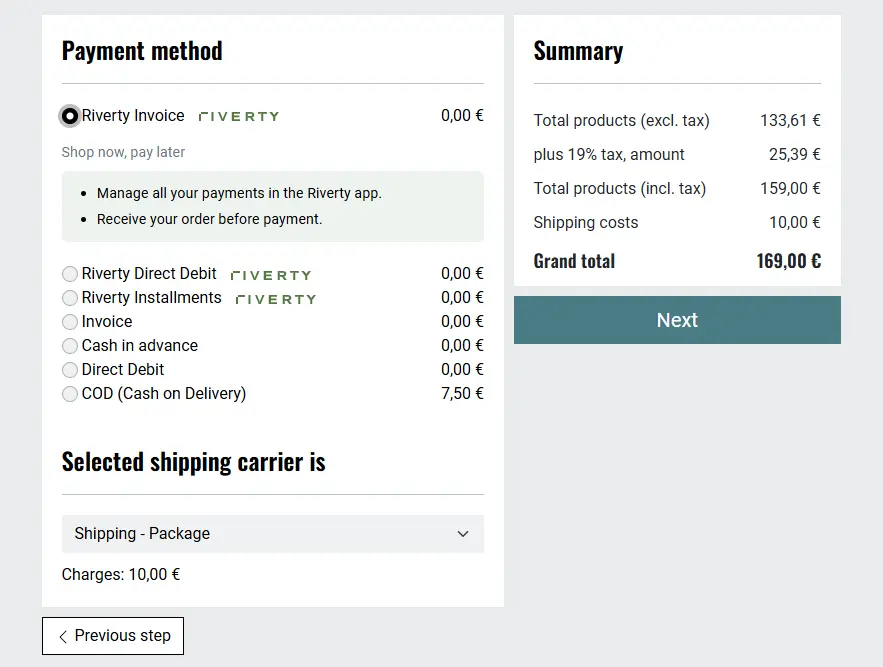
Figure: Invoice
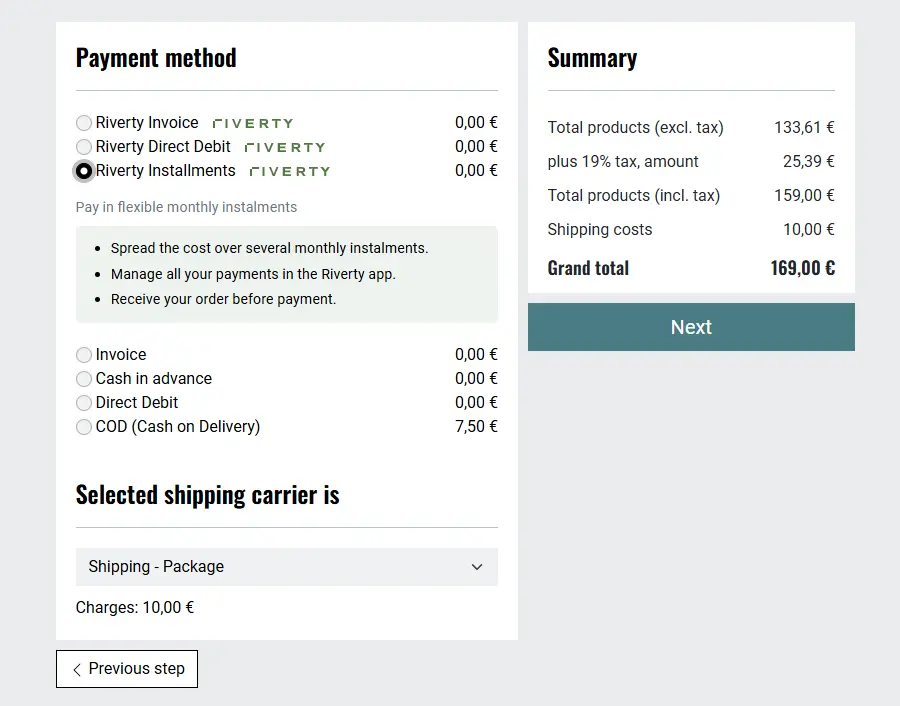
Figure: Instalments without representative example preview
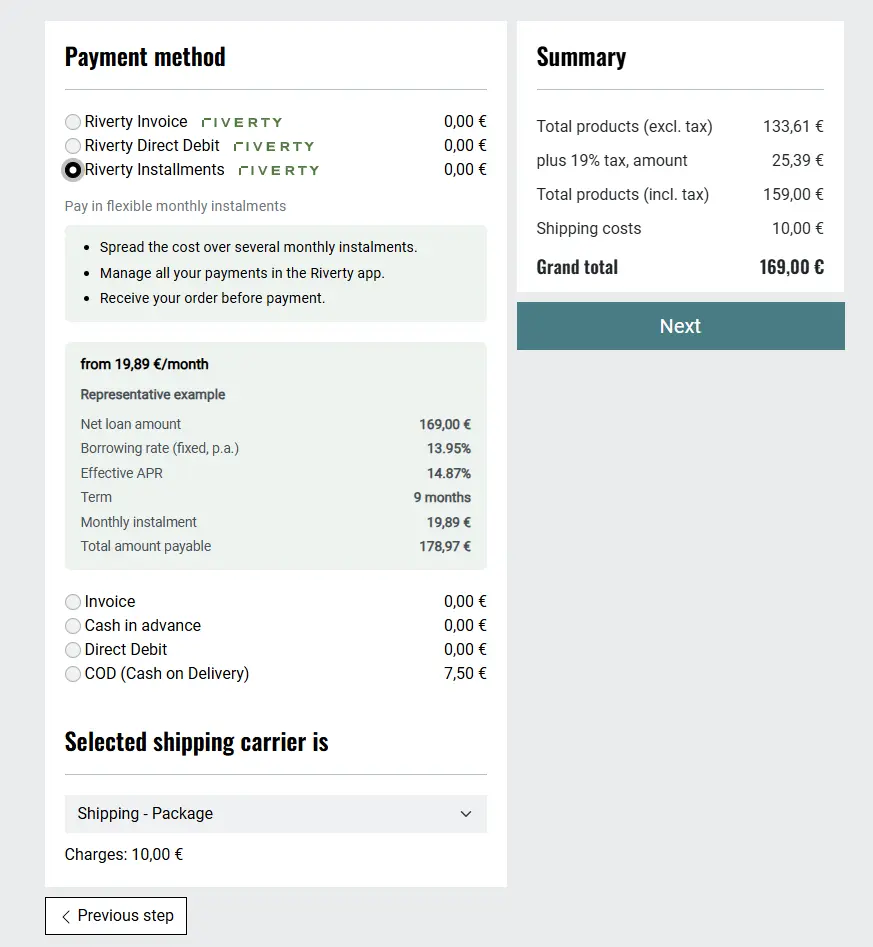
Figure: Instalments with representative example price preview enabled
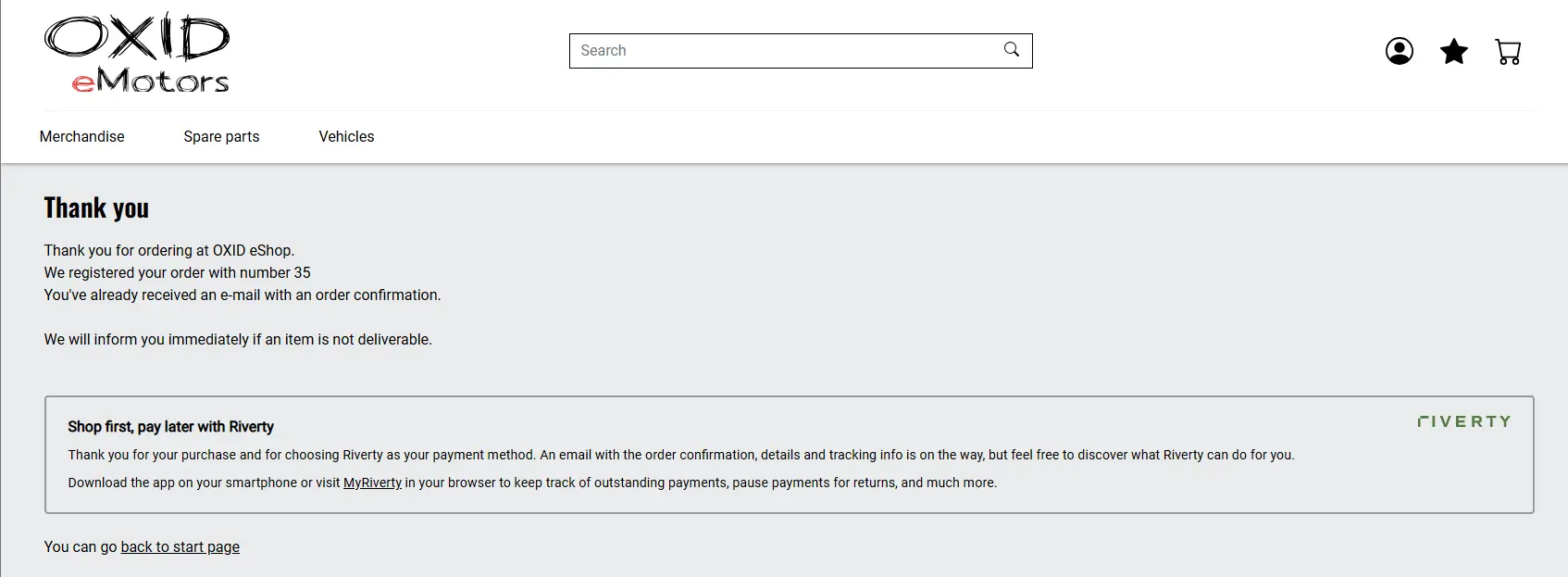
Figure: Thank-you page with Riverty info box
¶ Order Management in the Admin
Riverty tab on the order detail page (Admin → Orders → [Order] → Riverty):
| Action | Description |
|---|---|
| Ship + Capture | Captures the remaining amount first, then sets the shipping date — the order stays unshipped if the API call fails |
| Capture (partial) | Captures selected line items |
| Void (remaining) | Cancels the remaining authorized amount |
| Void (partial) | Cancels selected line items |
| Refund (full) | Refunds all captured line items |
| Refund (partial) | Refunds selected line items |
Action buttons only appear when the transaction status allows that action: capture/void only for authorized/partially_captured, refund only for captured/partially_captured/partially_refunded.
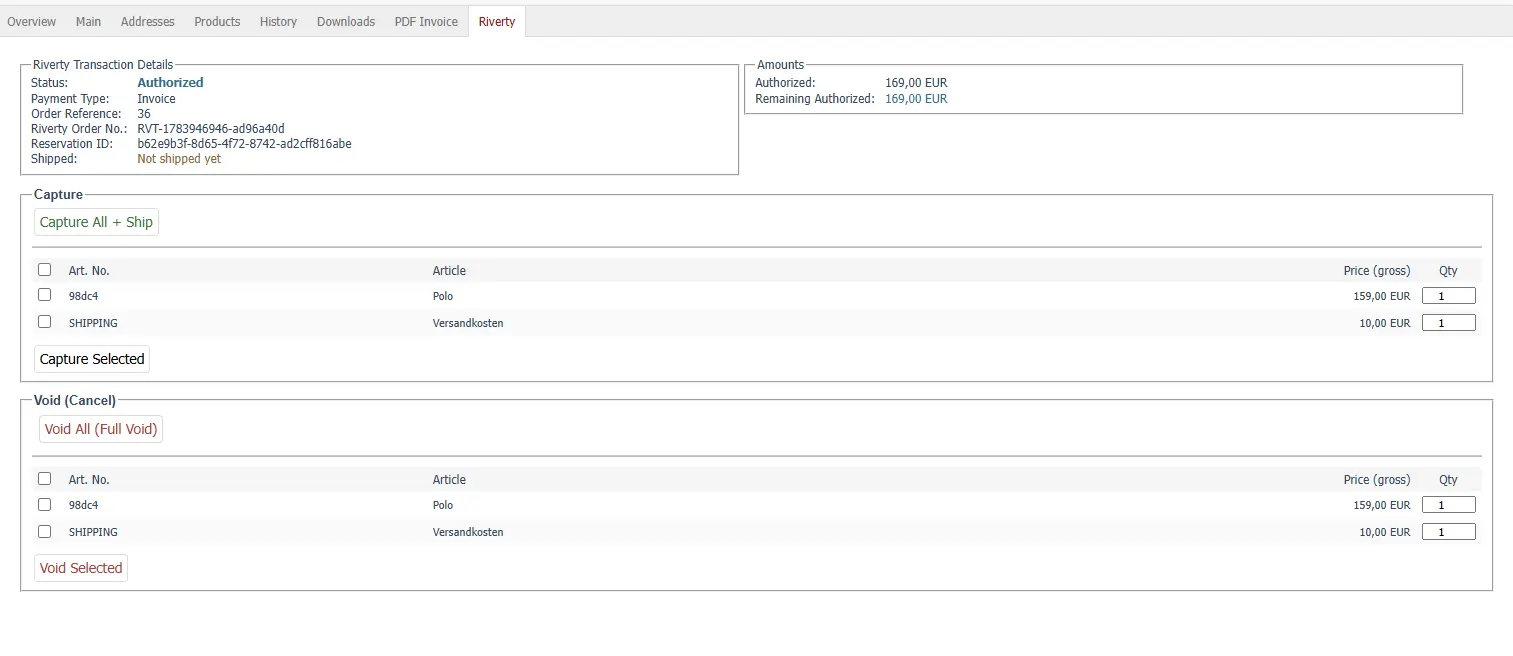
Figure: Riverty tab on the order detail page
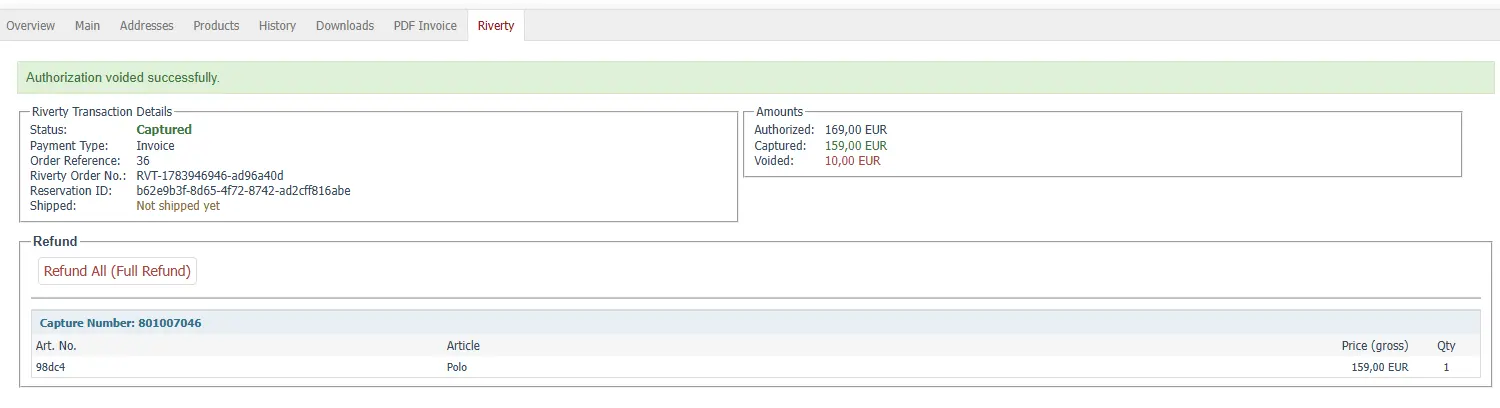
Figure: Capture/void example with partial quantities
¶ API Logs
Every Riverty API call is logged regardless of debug mode and is searchable/filterable here — the first place to check when a payment doesn't behave as expected.
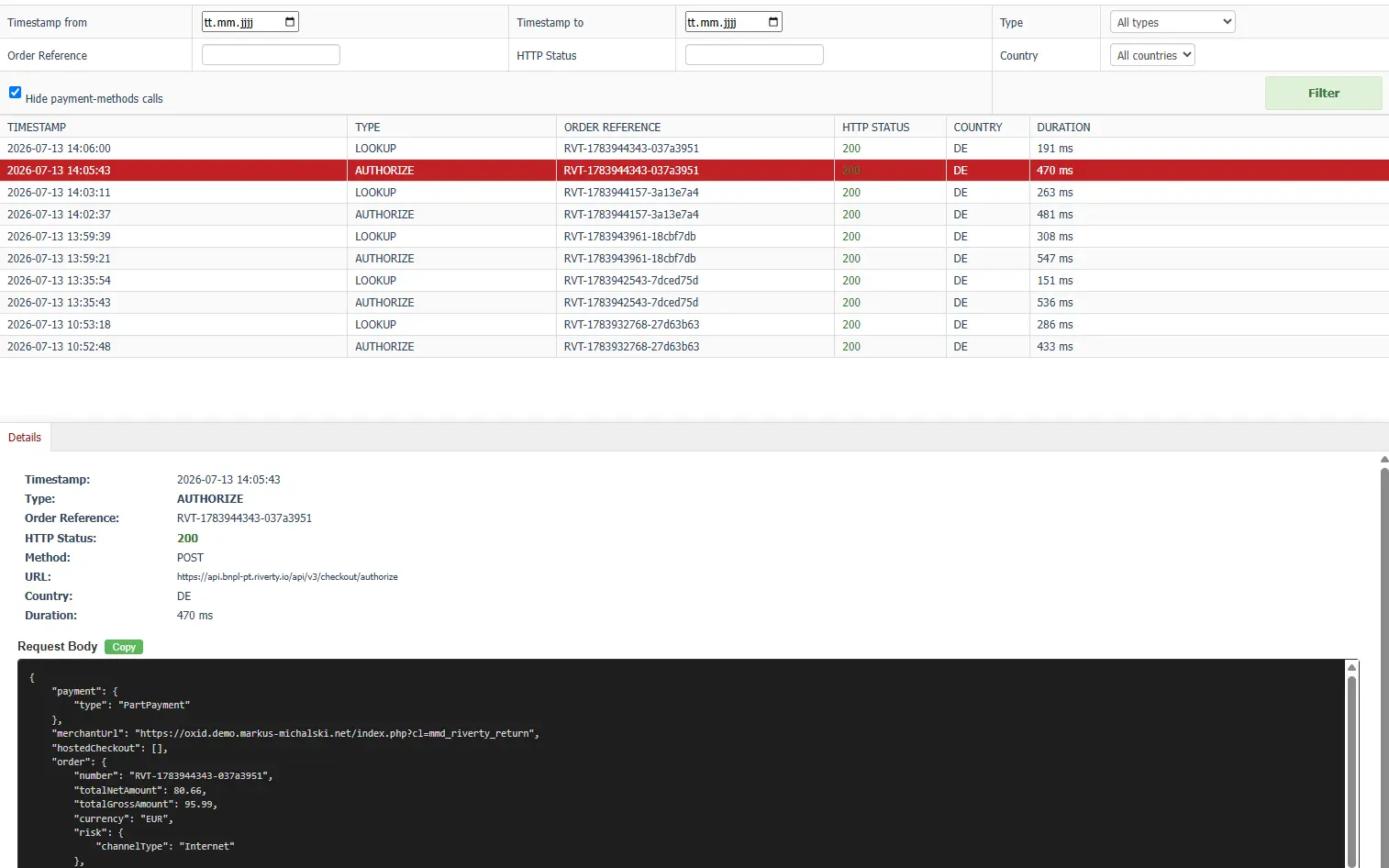
Figure: API log interface in the admin